Admin Setup Guide - Get LeadrVision Running
Who this is for: the person setting up a workspace on LeadrVision for the first time (owner / admin). Time: ~15 minutes. You'll need: access to your GoHighLevel sub-account, and an AI (LLM) API key.
Follow these steps in order. Don't skip. Each step unlocks the next. When you're done, leads start scoring automatically and your reps get a ranked call queue.
What you're about to do (the 4 steps)
- Create your workspace (name your organization).
- Connect GoHighLevel (paste a token so LeadrVision can read your leads).
- Turn on AI scoring (paste your AI key so leads get ranked).
- Add your team (invite reps and managers).
The Home page shows a live checklist that tracks steps 2-3 for you:
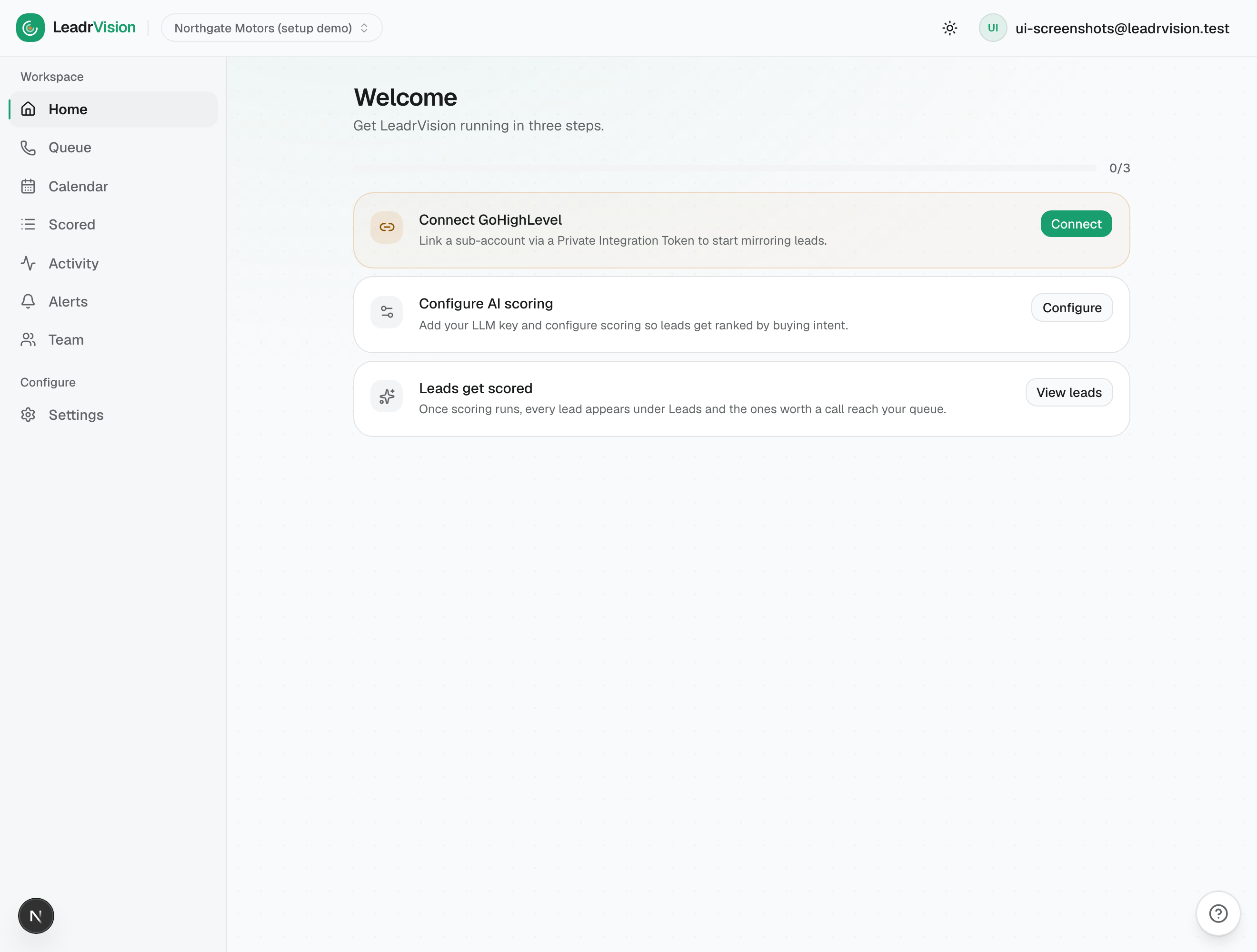
The amber step is the one to do next. Green = done. When all are green, you're live.
Step 1 - Create your account
- Go to your LeadrVision URL and sign in (Google account).
- First time in? You'll see "Set up your workspace." Type your business's name and click Create.
- You're now the Owner of this organization. You land on the Home page with the setup checklist above.
You can rename the workspace later in Settings. One person sets this up; you invite everyone else in Step 4.
Step 2 - Connect GoHighLevel
This is what lets LeadrVision see your leads, calls, and appointments. It's read-only by default - LeadrVision mirrors your data, it doesn't change your GHL unless you let it (see the optional write scope below).
2a. Create a Private Integration Token in GoHighLevel
Do this inside GoHighLevel, in the sub-account (location) you want to connect:
- In GHL, go to Settings → Private Integrations.
- Click Create New Integration (or + New).
- Give it a name like
LeadrVision. - Select all 8 read-only scopes, and make sure these are included:
- Contacts (read)
- Conversations + Conversations / Messages (read)
- Opportunities (read)
- Calendars + Calendar Events (read) - needed for appointments
- Users (read) - required so LeadrVision honors who each lead is assigned to in GHL
- (Optional for read-only use; required for editing) also add the Contacts write scope. This lets reps correct contact details from LeadrVision and lets LeadrVision post AI assessments as contact notes in GoHighLevel.
- Click Create, then copy the token. It starts with
pit-.... Copy it now - GHL only shows it once. - Also grab your Location ID: it's in Settings → Business Info (or the URL), looks like
JxaUkvt0zxImBTmx87vL.
2b. Paste it into LeadrVision
- In LeadrVision, go to Settings → Integrations.
- Click Add GoHighLevel Location.
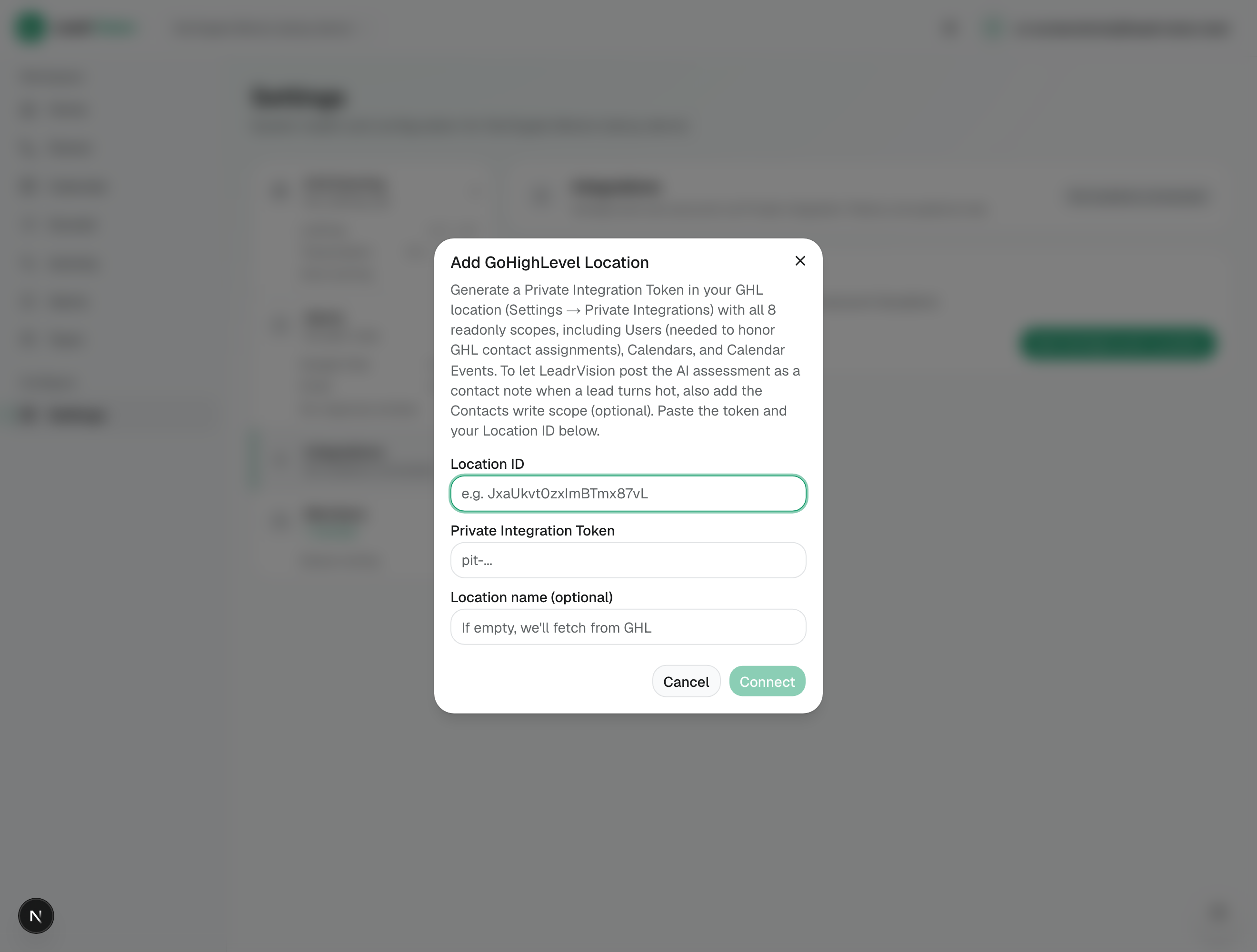
- Fill in:
- Location ID - the
JxaUkvt0...value from GHL. - Private Integration Token - the
pit-...token you copied. - Location name (optional) - leave blank and LeadrVision fetches it from GHL.
- Location ID - the
- Click Connect.
If the token and scopes are right, the connection turns healthy and LeadrVision starts mirroring your contacts, conversations, calls, and appointments within a minute or two.
If you see an error: it almost always means a missing scope or a typo'd token/Location ID. Re-create the token with all read-only scopes (especially Users) and try again.
Step 3 - Turn on AI scoring
This is the brain. Without it, leads are mirrored but not ranked. Go to Settings → AI & Scoring.
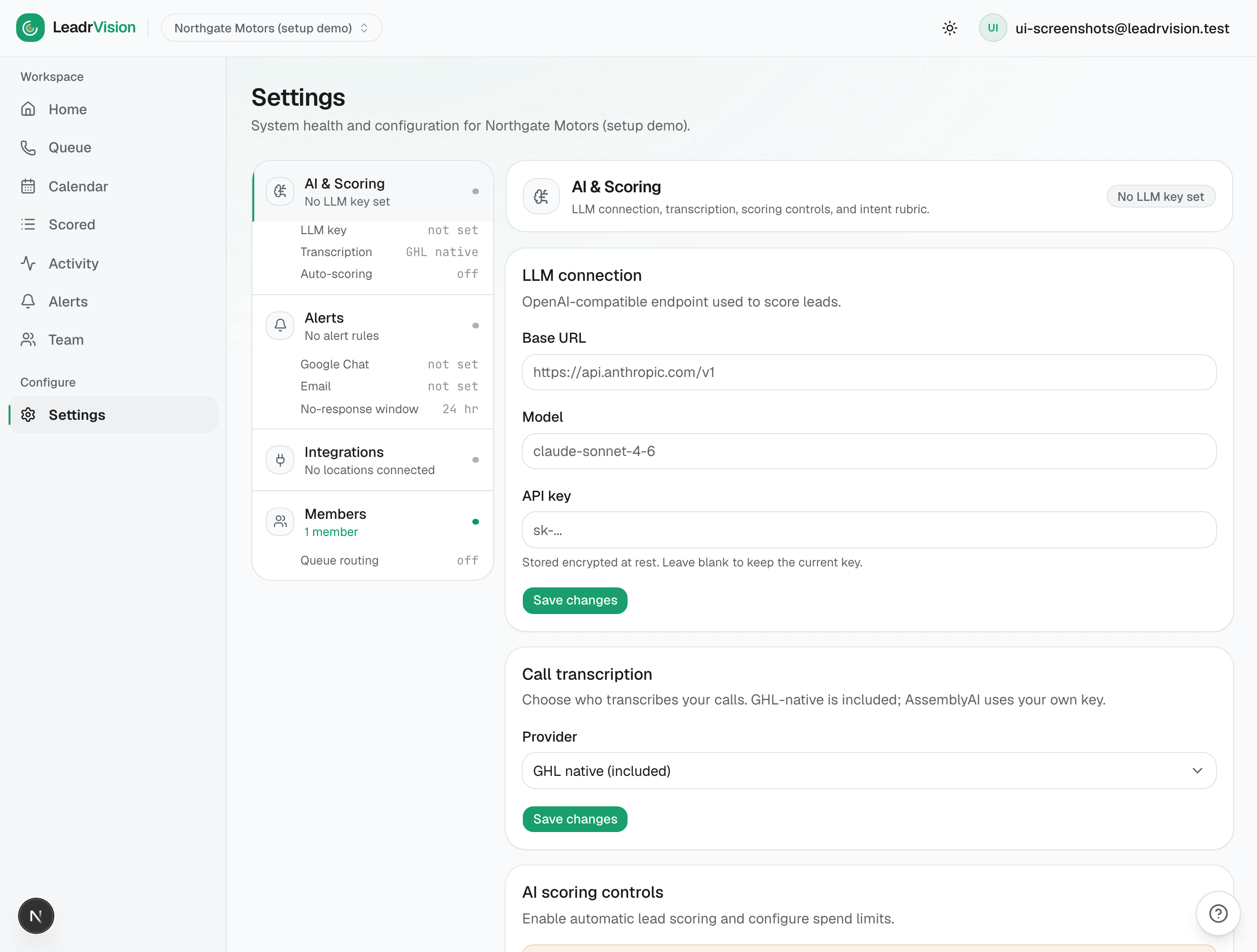
3a. LLM connection (your AI key)
LeadrVision uses your own AI key (you control the model and the cost). Any OpenAI-compatible endpoint works.
- Base URL - your AI provider's API endpoint. For Anthropic (Claude):
https://api.anthropic.com/v1. - Model - which model scores leads. Good default:
claude-sonnet-4-6. - API key - paste your key (e.g.
sk-...). It's stored encrypted. Leave blank later to keep the current key.
Click Save changes. A green Configured badge means it's accepted. If the key is wrong you'll see "Your API key was rejected" - fix it here or scoring won't run.
Where do I get a key? From your AI provider's console (e.g. Anthropic Console → API Keys). This key is billed to your AI account - it's your spend, your control.
3b. Call transcription
- GHL native (included) - the default. Use this unless you have a reason not to.
- AssemblyAI (bring your own key) - optional, higher-quality transcripts. Bills per audio-minute to your AssemblyAI account.
Leave it on GHL native to start.
3c. AI scoring controls (the cost dial)
Scoring uses your AI credits, so it's off by default. Turn it on here:
- Enable auto-scoring - flip this on to start ranking leads.
- Cooldown between scores per lead - minutes (0-1440) before the same lead can be re-scored.
0= no cooldown. A value like60keeps costs sane. - Daily scoring cap per org - max scores per day (0-10,000).
0= unlimited. Set a cap if you want a hard spend ceiling. - Score leads when a call transcript arrives - re-score a lead as soon as a call is transcribed (recommended; requires auto-scoring on).
Click Save changes. Scoring begins on your mirrored leads. Within minutes, leads get a Hot / Warm / Cold temperature and a 0-100 score, and the actionable ones appear in the Queue.
Sensible starting point: auto-scoring on, cooldown 60, daily cap 0 (or a number you're comfortable with), score-on-transcript on.
3d. Intent rubric (optional, later)
Further down the AI & Scoring page is the rubric - the criteria the AI uses to judge buying intent. The defaults are good. Tune it later to match what "ready to buy" means for your business - a roofing company, a law firm, and a dealership each read intent differently.
Step 4 - Add your team
Go to Settings → Members.
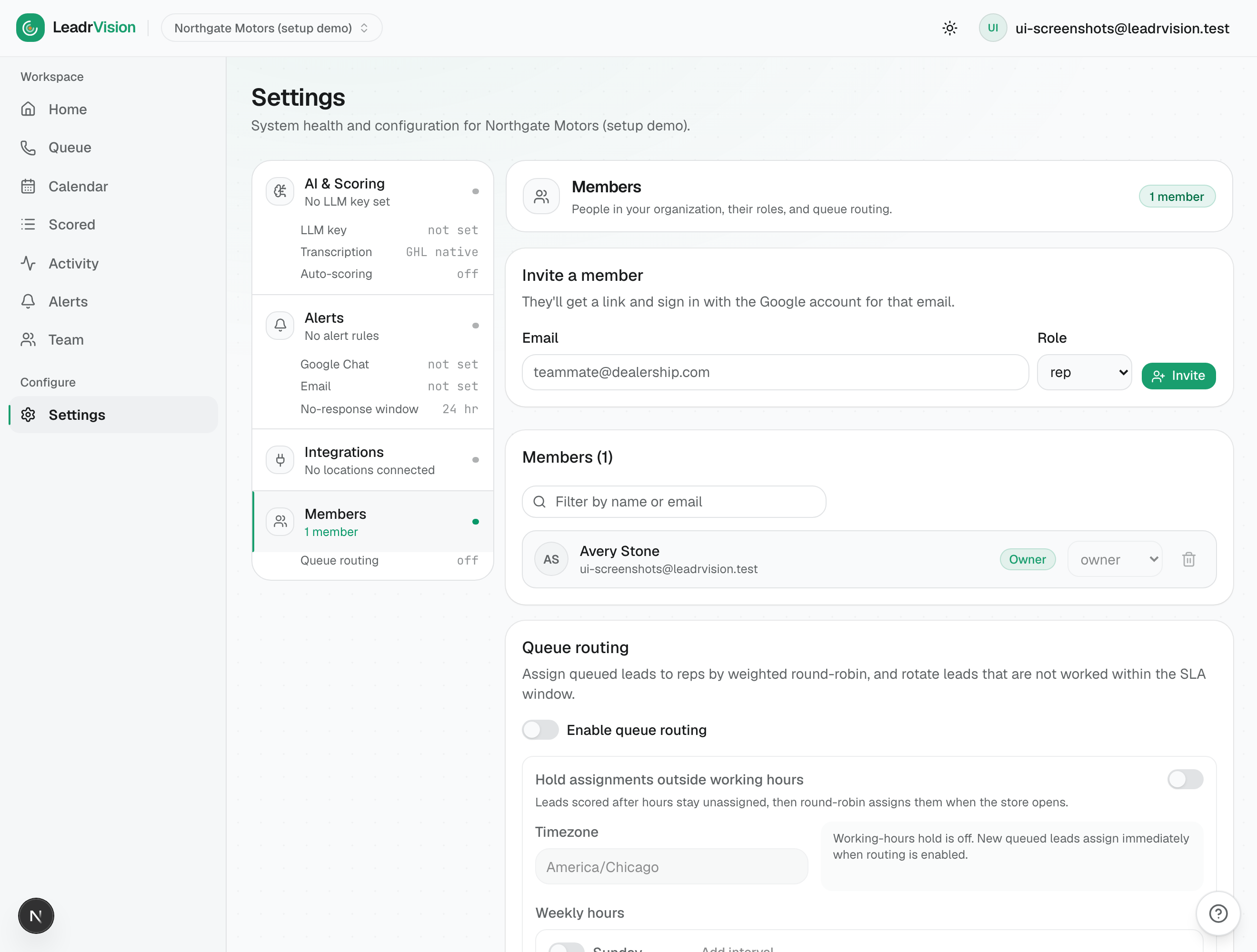
4a. Invite people
- Enter a teammate's email and pick a role:
- Rep - works the call queue. Sees only Next call + Alerts.
- Manager - oversight: Home briefing, Team board, all leads, settings (most).
- Admin - everything a manager has, plus full settings + member management.
- Owner - top-level (that's you).
- Click Invite. They sign in with that Google email and land in your workspace.
4b. Queue routing (recommended once reps are added)
Turn on Queue routing to:
- Auto-assign queued leads to reps (weighted round-robin), and
- Auto-rotate (SLA rotation) a lead to another rep if it isn't worked within the time window.
Routing needs the GHL Users read scope from Step 2a. If you skipped it, re-create the token with that scope.
You're live - how to confirm
- Home checklist shows 2/2 done (Connect + Configure), then the third step auto-completes once leads score.
- Leads / Scored fills with temperatures and scores.
- Queue starts showing the leads worth calling.
- No red banners in Settings → AI & Scoring ("key rejected") and no score failures on the Team page.
Hand your reps the Rep Playbook and your managers the Manager Playbook.
Troubleshooting
| Symptom | Likely cause | Fix |
|---|---|---|
| GHL connect fails | Missing scope or wrong Location ID / token | Re-create the PIT with all read-only scopes (especially Users); double-check Location ID. |
| Leads mirror but never score | Auto-scoring off, or no/!invalid LLM key | Settings → AI & Scoring: enable auto-scoring; fix the API key (green "Configured" badge). |
| "Your API key was rejected" | Wrong/expired AI key | Paste a valid key and Save. |
| Reps don't get assigned leads | Queue routing off, or missing Users scope | Settings → Members: enable Queue routing; ensure the GHL Users scope. |
| No appointments showing | Missing Calendars / Calendar Events scope | Re-create the PIT with those scopes. |
| Leads stopped flowing in | Connection paused or unhealthy | Settings → Integrations: confirm the connection is healthy (not paused). |
Security note: your GHL token and AI key are stored encrypted. Never share them in screenshots or chat. Rotate them if they're ever exposed.