Rep Playbook - Working Your Day in LeadrVision
Who this is for: salespeople and inside sales reps who call and follow up with leads. The one-sentence version: open LeadrVision, hit Work Queue, call the lead on top, log what happened, repeat - the system already sorted the entire building by who's most likely to buy.
1. How the queue thinks
LeadrVision is built on one idea: you should never have to wonder who to call next.
- The AI scores every lead's buying intent from their actual conversation - calls, texts, emails.
- It puts them in one ranked queue: hottest first.
- Your job is to call the top lead, every time, and tell the system what happened.
You're not working a to-do list or racing a due date. You're working a prioritized list where the lead most likely to buy today is always sitting on top.
2. Your home base: the Call Queue
Open LeadrVision and go to Queue (reps see it labeled Next call). This is where you live.
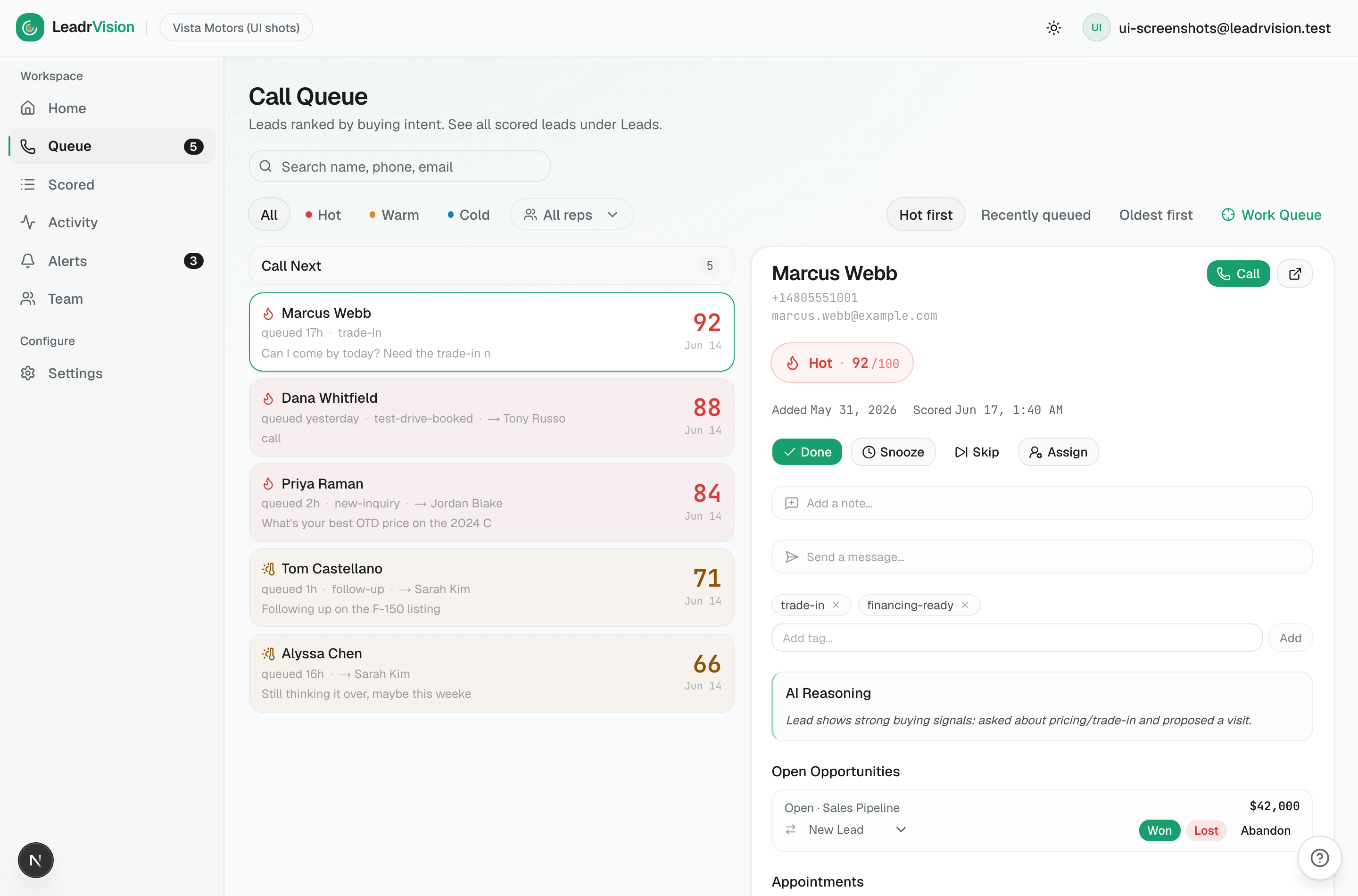
The list is sorted Hot → Warm → Cold, and within a tier, highest score first. Each row shows:
- A flame/temperature dot and the lead's name.
- The score (0–100) and when it was queued.
- A one-line activity hint (their last message, or "call") and a badge (e.g.
pricing-question,new-inquiry). - The assigned rep (
→ Tony Russo), if routing is on.
You can filter by Hot / Warm / Cold, change the sort (Hot first / Recently queued / Oldest first), and search by name, phone, or email.
Rule: you don't pick favorites. You work top-down. The order is the priority.
3. Work Queue (focus mode) - your core loop
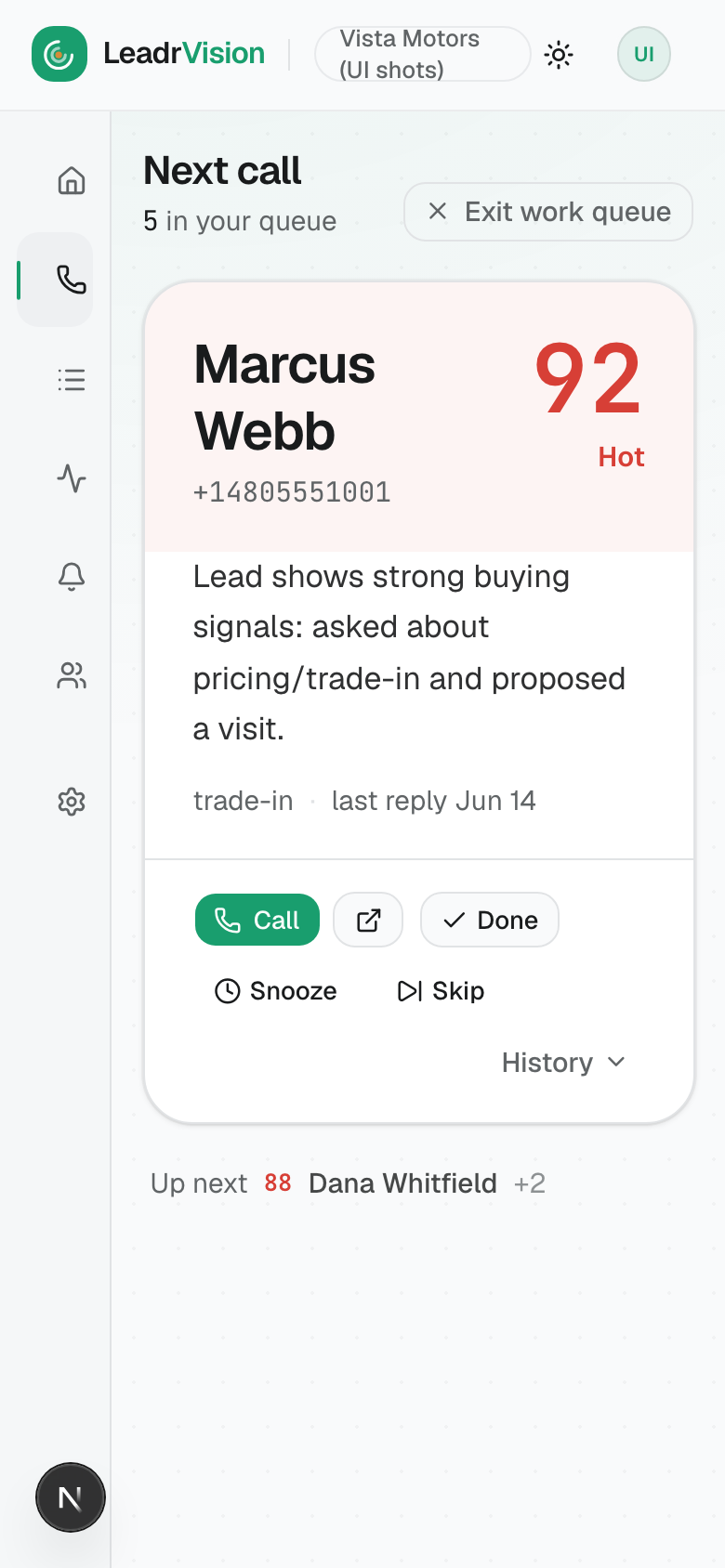
Click Work Queue (top-right of the queue). LeadrVision serves you one lead at a time - the single highest-intent call in your queue.
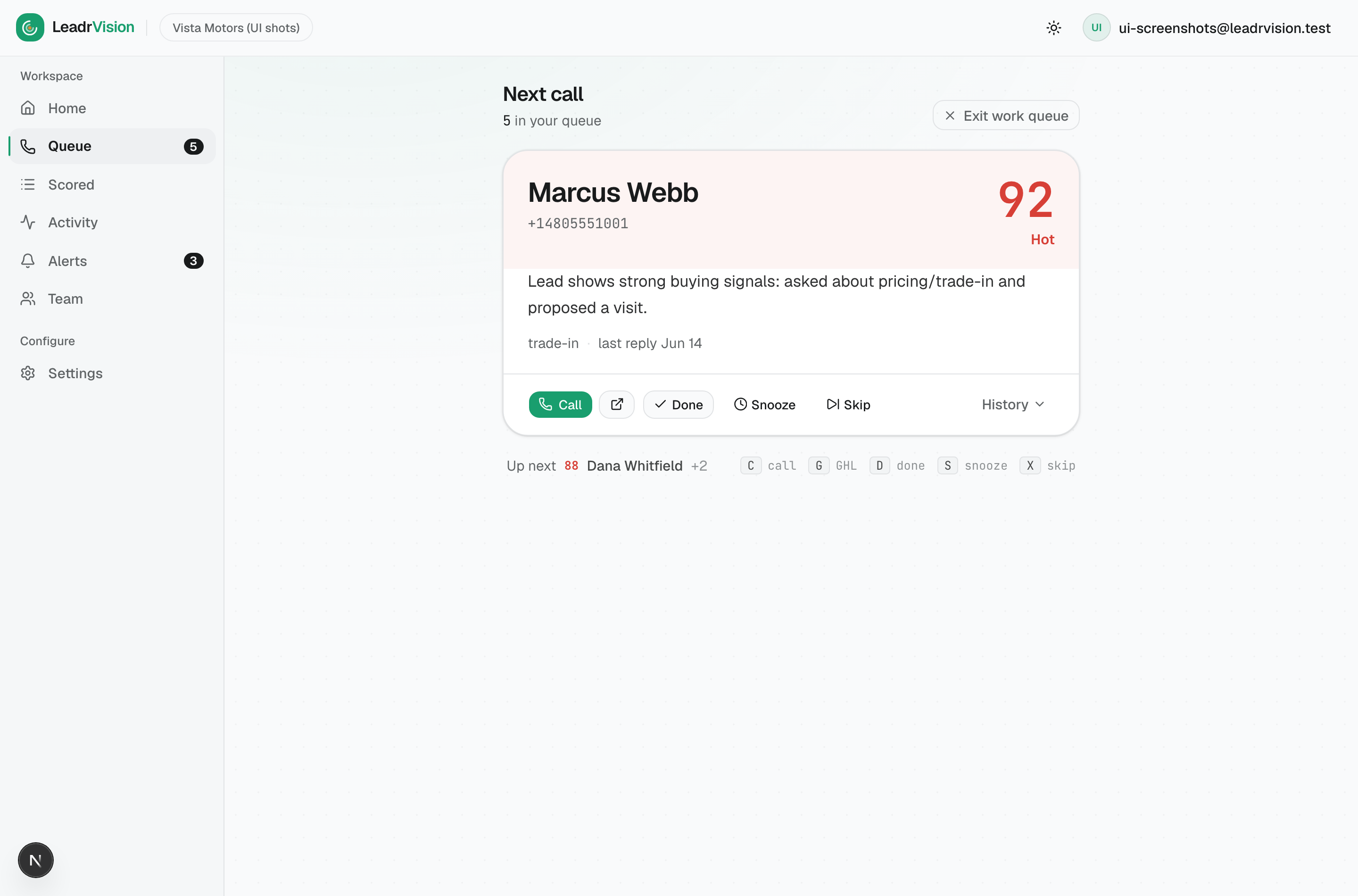
Everything you need is on one card:
- Name, phone, score, temperature up top.
- The reason for the call - the AI's plain-English read on why this lead is hot ("asked about pricing and proposed a time to meet"). Lead with this on the phone.
- One line of context - interest, last reply, open deal value.
- The action row, and how many leads are in your queue.
Keyboard shortcuts (focus mode)
You can run an entire calling session without touching the mouse:
| Key | Action |
|---|---|
| C | Call (your primary call action - phone dialer) |
| G | Call in GHL |
| D or Enter | Mark Done (and advance to the next lead) |
| S | Snooze 1 hour |
| X | Skip |
After you act, the card eases out and the next lead eases in. "Up next" shows who's coming.
Always close the loop - Done / Snooze / Skip
Every lead you touch must get an outcome. This is the LeadrVision equivalent of clearing a task:
- Done - you worked it (called, connected, handled). It leaves your queue.
- Snooze - not now, come back later. Choose 1 hour / 4 hours / Tomorrow. It disappears and reappears when the timer is up.
- Skip - not actionable for you right now. It steps aside.
Why this matters: an un-dispositioned lead keeps sitting in the queue and counts against you (and the team) as unworked. A hot lead left untouched for hours is the worst signal in the system - it's what lights up your manager's screen in red.
4. The dossier - everything about one lead
Click any lead (in the list or focus mode) to open the dossier on the right. This is your full toolkit.
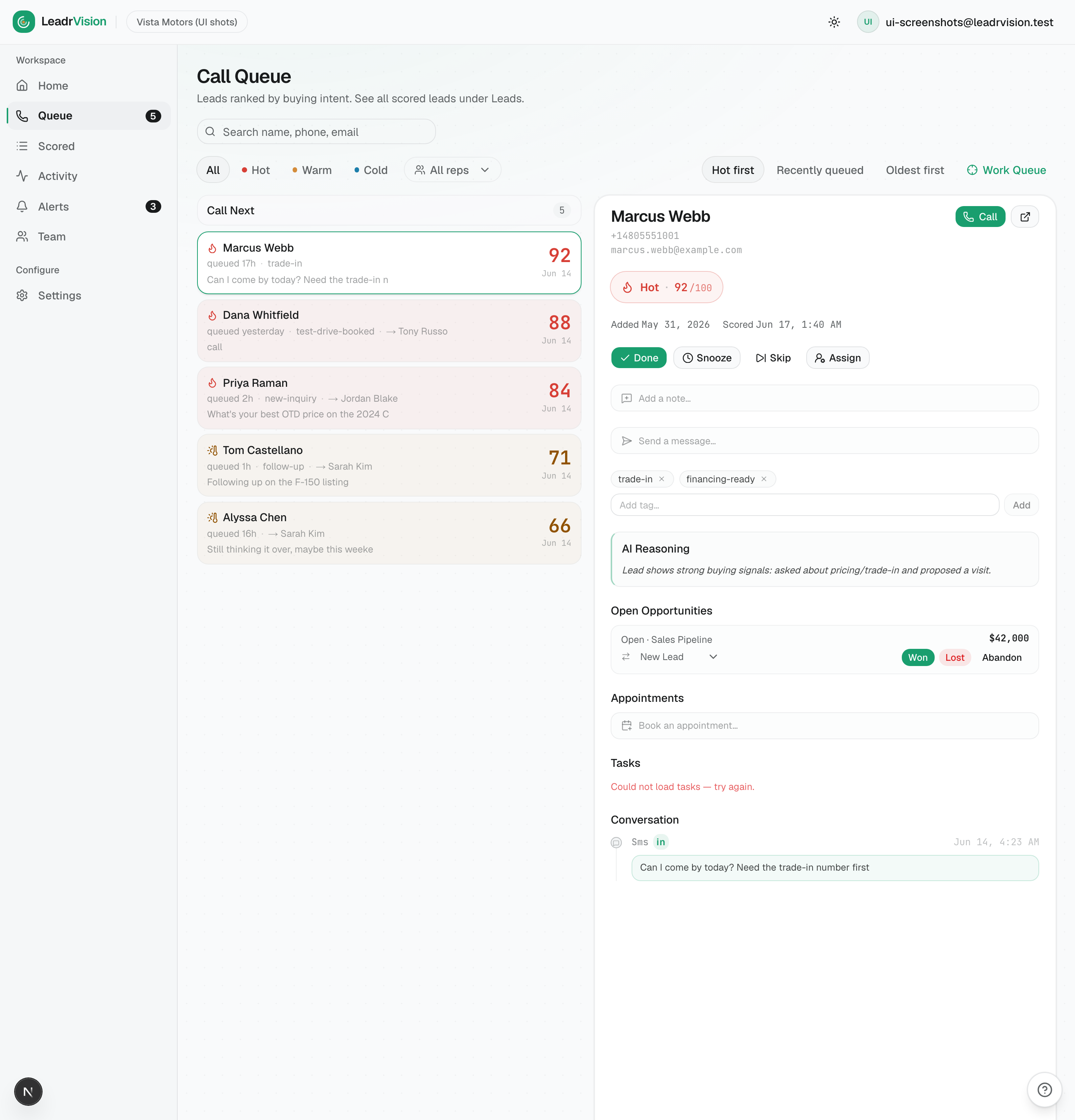
From top to bottom:
- Identity + temperature + score - name, phone, email,
Hot 92/100, when the lead was added and last scored. - Call - green Call button (phone) and Call in GHL.
- Done / Snooze / Skip - the same disposition controls as focus mode.
- Assign - (managers only) reassign the lead to another rep.
- Add a note - log call outcomes and context. Syncs to GHL.
- Send a message - (if outbound messaging is enabled for your workspace) text the lead directly.
- Tags - add/remove tags like
ready-to-book. - AI Reasoning - the full explanation behind the score. Read it before you dial.
- Open Opportunities - the deal: its pipeline, current stage (with a dropdown to move it), dollar value, and Won / Lost / Abandon buttons.
- Appointments - Book / Reschedule / Cancel.
- Tasks - follow-ups attached to the lead.
- Conversation - the full message + call history, including call transcripts.
5. Move the deal stage
When a deal moves, tell the system - from the dossier's Open Opportunities section.
- You started working a deal? Move it from New Lead → Working (the stage dropdown).
- Booked a visit? Move it to Appointment Set.
- Closed it? Hit Won. Dead? Lost. Gone quiet for good? Abandon.
Stage and disposition changes save instantly and sync to GHL on the next poll - the toast confirms it. You don't need to also update GHL by hand.
Standard: if you're actively working a deal, it must not still say "New Lead." A pipeline full of "New Lead" deals tells every report that nothing is being worked.
6. Appointments - book it, then defend it
Open a lead's dossier → Appointments.
- Book an appointment… - set a title, start time, (optional) end time, confirm. It books in GHL on the next sync.
- Reschedule / Cancel existing appointments inline.
The discipline:
- Confirm tomorrow's appointments today with a quick call: "Just confirming you're good for 3:30 tomorrow."
- No same-day appointment goes unconfirmed. Today's sale beats next week's.
- Update the appointment after it happens so the record is accurate.
If you don't see a booking form (just a hint to "set a booking calendar"), tell your manager - they enable it in Settings → AI & Scoring.
7. Alerts - the leads that can't wait
The Alerts tab (bell icon, with an unread count) is your fast lane. When a lead turns Hot, gets assigned to you, or goes silent past the no-response window, an alert lands here.
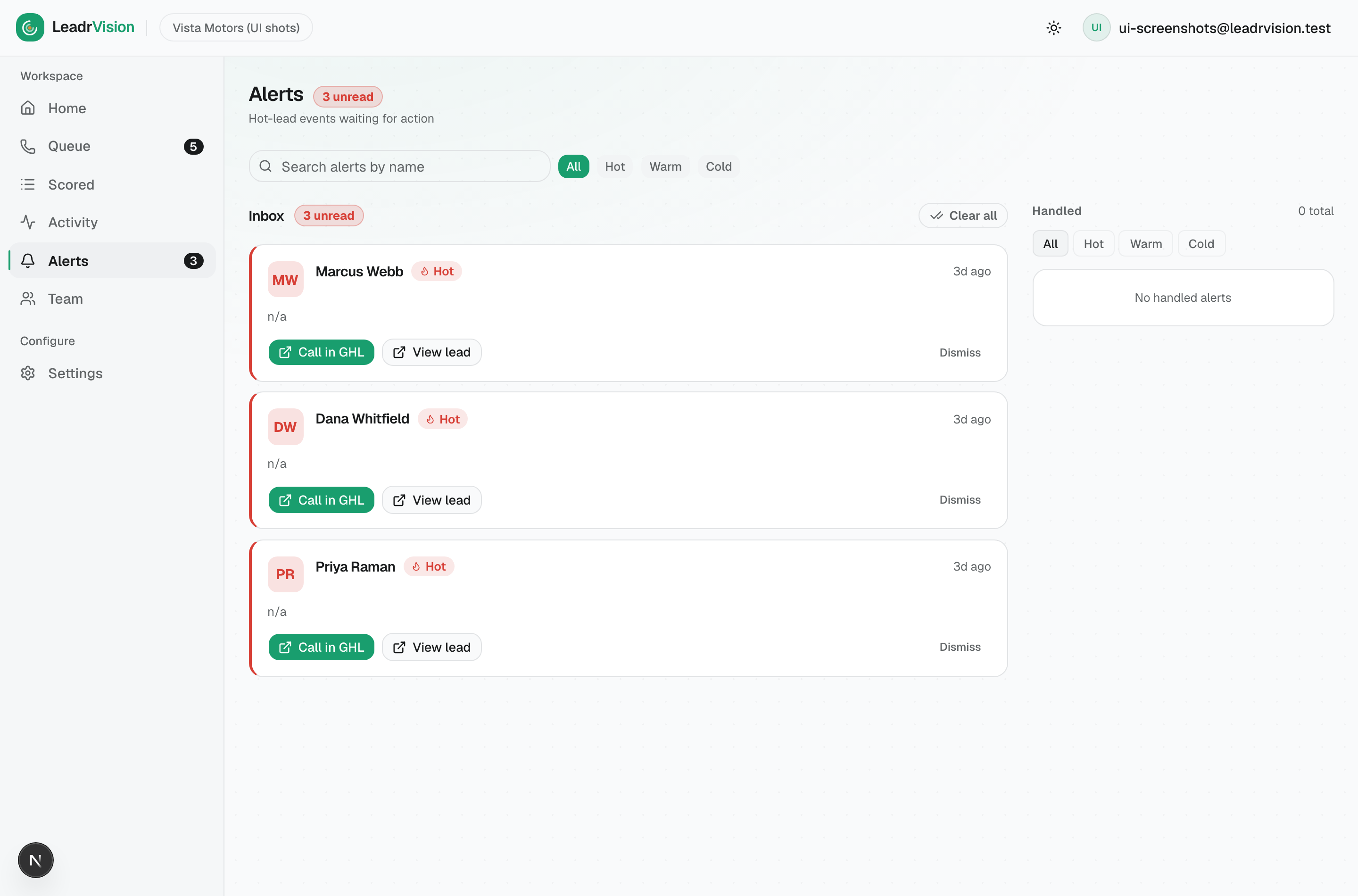
For each alert you can Call in GHL, View lead (jump straight to the dossier), or Dismiss. Handled alerts move to the Handled tab.
Rule: clear your alert inbox like your queue. A hot-lead alert sitting unread means a buyer is waiting while you're elsewhere.
8. Working on the go (mobile)
Focus mode works on your phone. Same one-lead card, same Call / Done / Snooze / Skip.
9. Your daily routine
Do this in order, every shift:
- Open the queue → Work Queue. Start at the top.
- For each lead: read the AI reason → Call → add a note → set the outcome (Done / Snooze / Skip) → move the deal stage if it moved.
- Hot first, always. Clear every Hot lead before you touch Warm. The filter chips make this easy.
- Check Alerts at the start of your shift and after every calling block. Handle hot-lead and assignment alerts immediately.
- Confirm upcoming appointments - today's and tomorrow's.
- End of day: your queue's Hot tier should be empty, your alert inbox clear, and every deal you touched moved off "New Lead."
10. What "good" looks like
- Zero hot leads left unworked at the end of your shift.
- Every touched lead has a disposition and an up-to-date deal stage.
- Fast first contact - hot leads called within minutes, not hours. (If a lead has been waiting on your screen, the customer is probably already talking to a competitor.)
- Alert inbox empty.
- No same-day unconfirmed appointments.
Quick answers
- "A lead I called keeps coming back." It came back because it was snoozed (timer expired) or got re-scored on new activity. Re-work it or mark it Done.
- "I moved a stage but GHL still shows the old one." It syncs on the next poll (a couple of minutes). The toast confirms it's queued.
- "I don't see Send message." Outbound messaging is off for your workspace. Use Call + Note, or ask your manager to enable it.
- "The Tasks section shows an error." Tasks load from GHL live; if the connection is hiccuping, refresh. Notes and dispositions still save.
See also: Rep Quick Reference (one page).